
By Benoit Descary · October 28, 2026 · Guide
Olivi is on the App Store: the recipe and meal planner app for iPhone, iPhone Duo and iPad
Read this article in: Français · Español · Deutsch · Italiano · Nederlands
Olivi has been on the App Store since October 28, 2026: the app for iPhone, iPhone Duo and iPad installs from Olivi’s App Store page, in six languages, and you sign in with the same account you use on olivi.ca and on Android. Your weekly meal plan, recipes and grocery list are waiting, and the app leans on things only iOS can do: a cooking timer that stays on the lock screen and in the Dynamic Island, Olivi in the share sheet of TikTok, YouTube and Safari, a widget that shows tonight’s dinner, Siri to top up the list, and a proper big-screen layout on iPad and on an unfolded iPhone Duo.
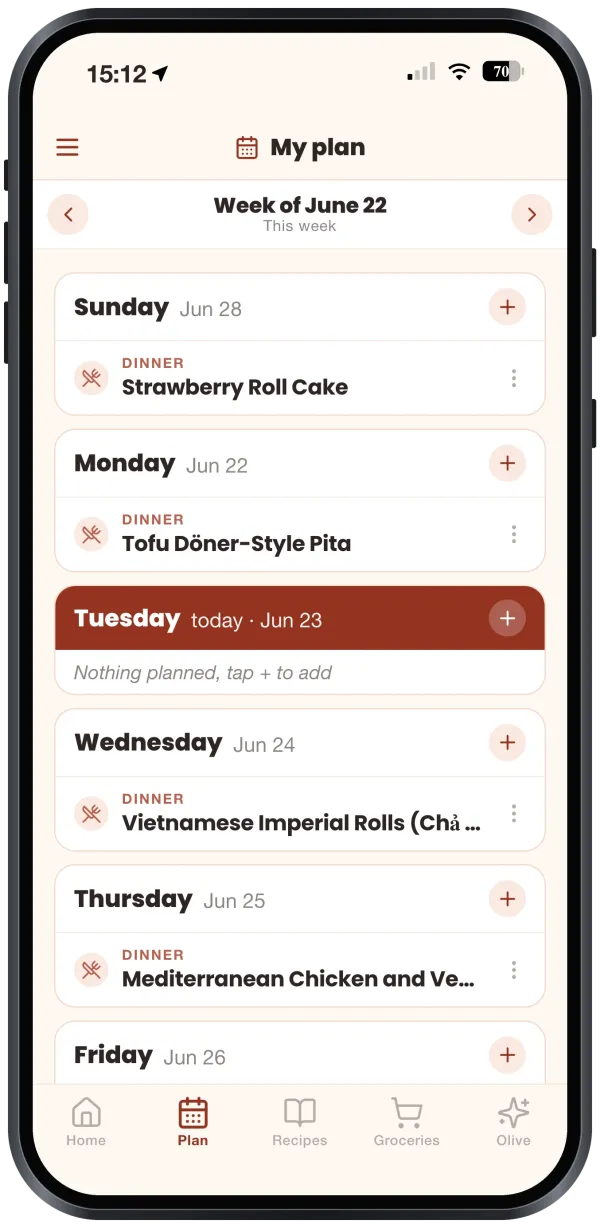
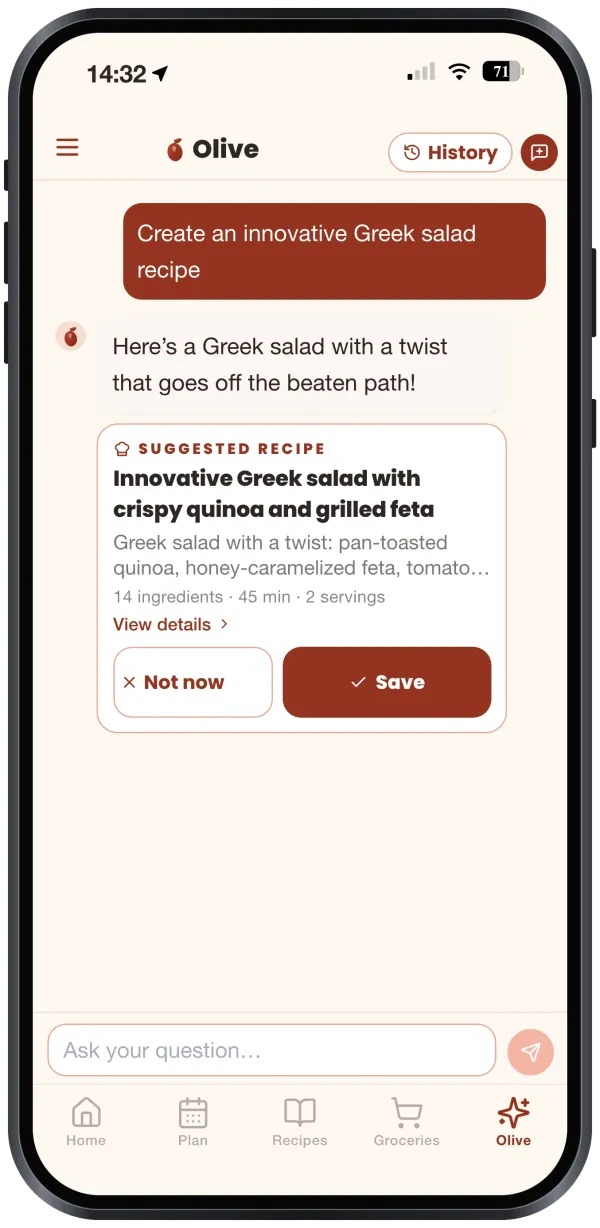
At a glance
- Version 1.0.3; Olivi has been on the App Store since October 28, 2026, in the Food & Drink category.
- One app for iPhone, iPhone Duo and iPad, iOS 16.2 or later, about 50 MB.
- Optimized for iPhone Duo: the layout follows the screen, folded or unfolded.
- Six languages: English, French, Spanish, German, Italian and Dutch, following the language set in your profile.
- Sign in with Apple, Google or email; it is the same Olivi account as on the web and on Android.
- Designed and built in Montréal by Tangram HQ Studio.
Optimized for iPhone Duo, folded or unfolded
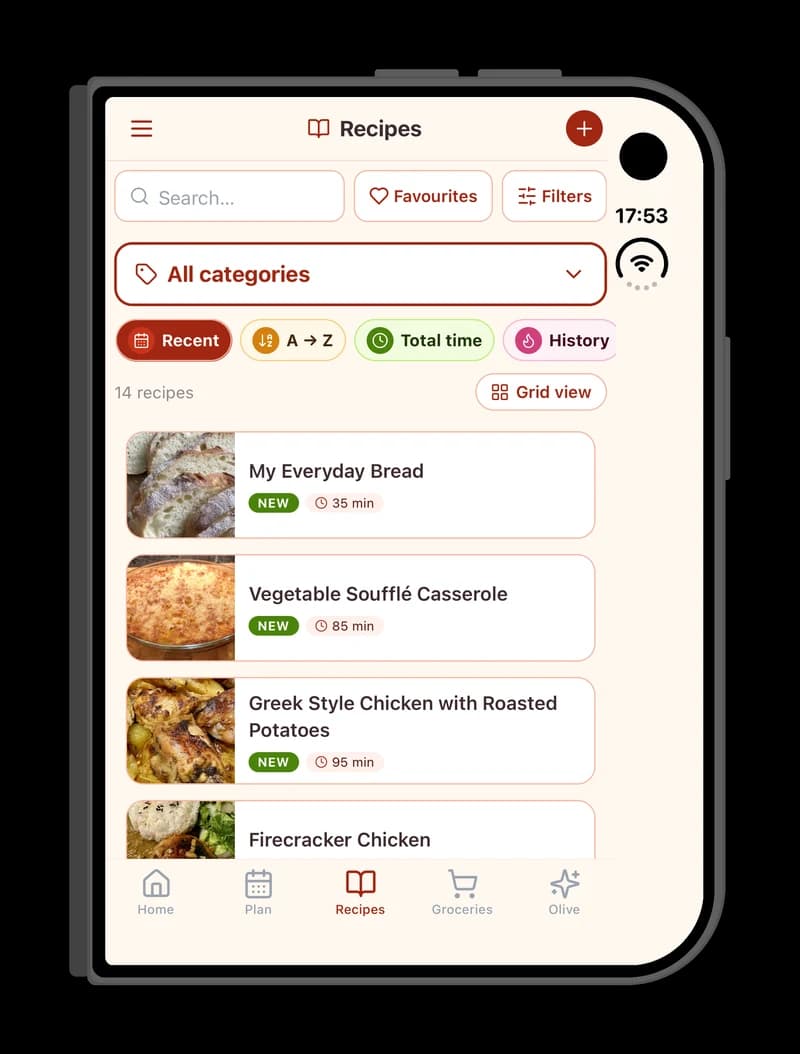
Olivi does more than open on iPhone Duo: since version 1.0.3, the app is optimized for both of its screens. Folded, the Duo keeps a column on the right for the time, the network and the camera. Olivi fits snugly around it: search, filters, your recipes and the tab bar stay whole, nothing is cropped or hidden under the camera, and no wasted margin shrinks the screen.
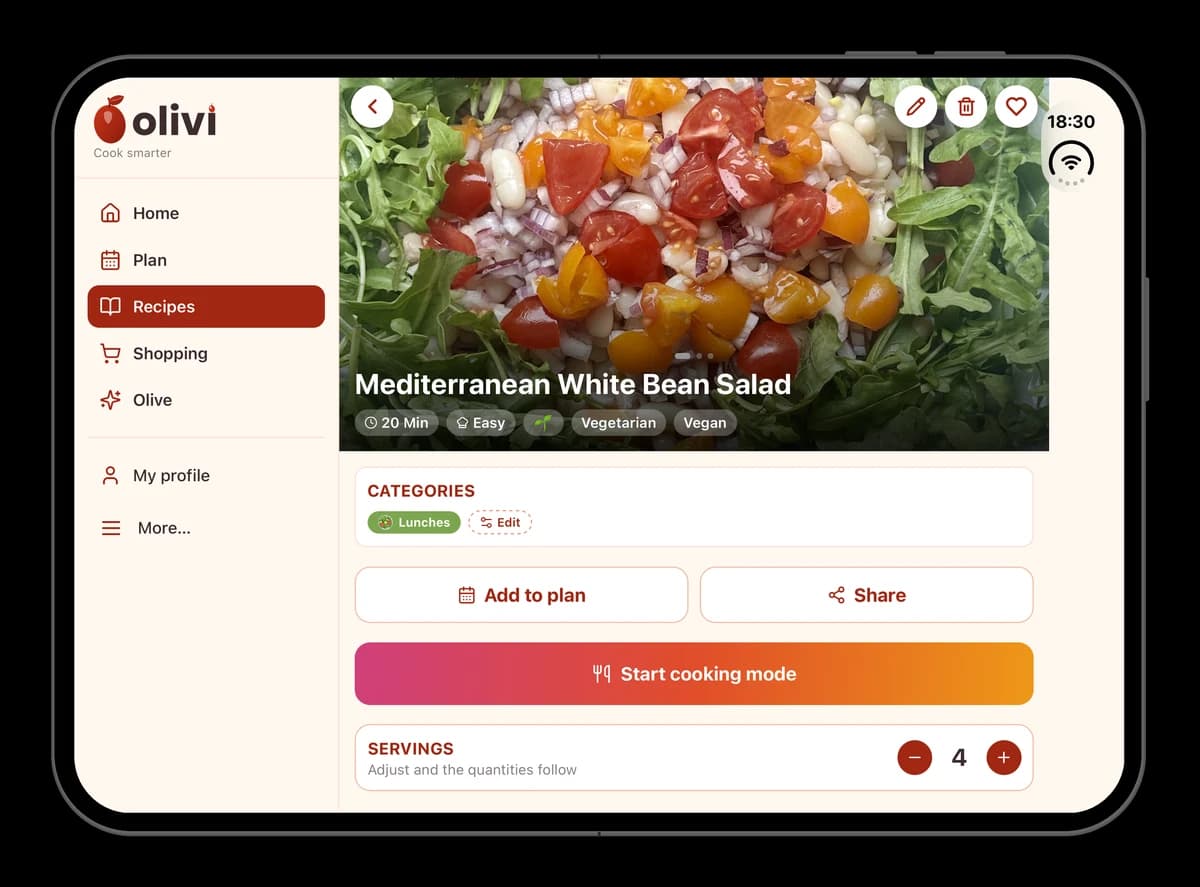
Unfolded, the Duo becomes a small tablet, and Olivi actually uses it. A recipe puts the ingredients next to the steps, so there is no flipping back and forth mid-recipe; your library goes to two columns in list view and three in grid view; the home screen lines up four tiles per row; the grocery list and the weekly meal plan spread over two columns. Turned sideways, Olivi even switches to its iPad layout, with the menu in a sidebar that stays visible. Open or close the phone and the layout adjusts to the screen you are using.
A timer that stays on screen, even with the phone locked
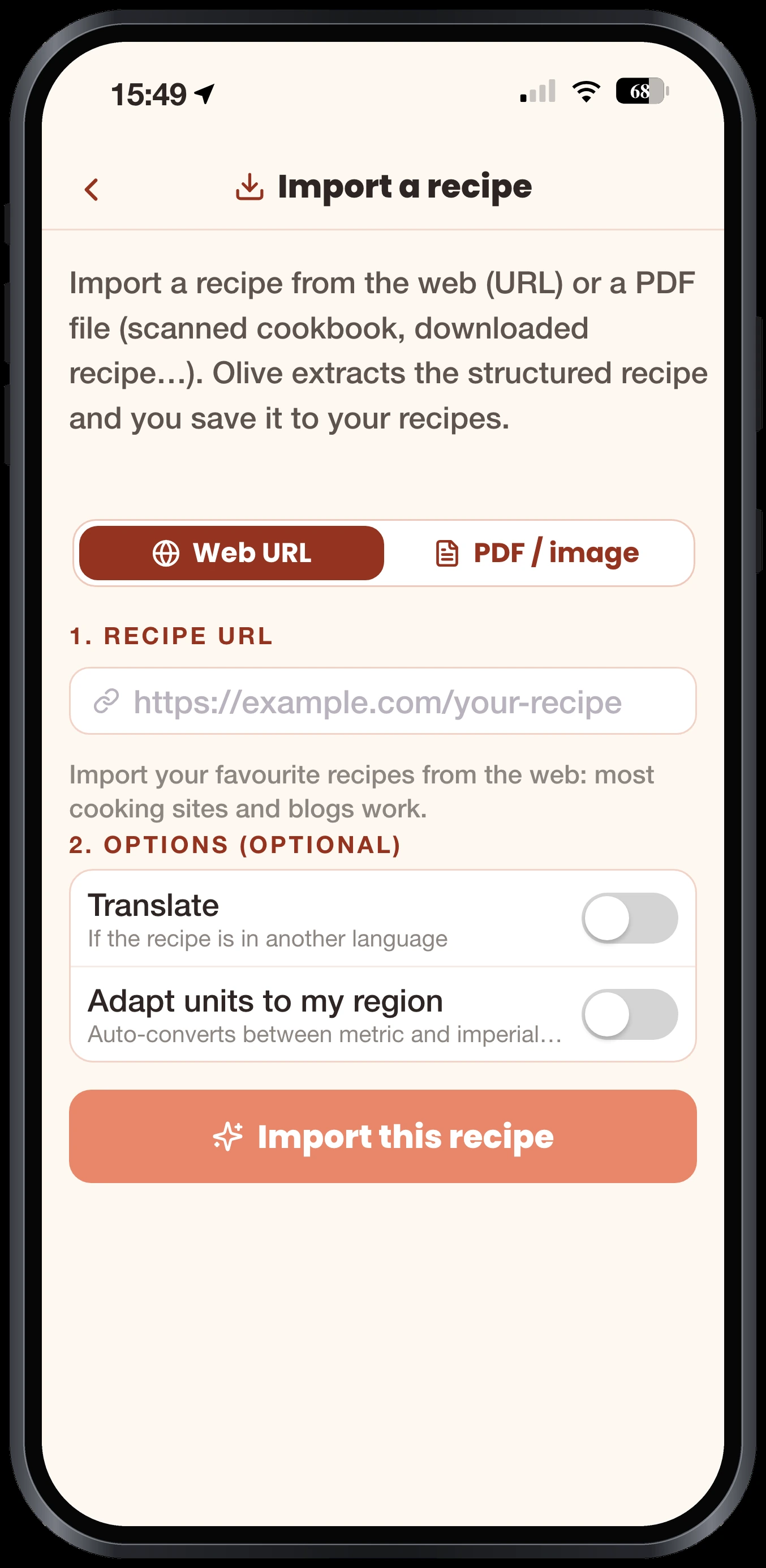
This is the feature you notice on the very first night. In cooking mode, Olivi spots the times written into the steps (“simmer for 20 minutes”) and offers a timer that is already set. Once it is running you can leave the app, answer a text or lock the iPhone: the countdown shows on the lock screen with the recipe name and the current step. On iPhones with a Dynamic Island (iPhone 14 Pro and later), it also sits at the top of the screen around the camera; press and hold it to see the full view.
Each step can have its own timer, and the Dynamic Island follows the one you started last. The recipe screen itself does not go to sleep while you cook, so you are not unlocking it with floury fingers. Batch cooking sessions, where several dishes overlap, use the same timer. The help article on cooking mode covers the rest.
Share → Olivi: send a recipe from TikTok, YouTube or Safari
Olivi adds itself to the iOS share sheet, the panel that slides up when you tap the Share icon. On a recipe video in TikTok or YouTube, or on a food blog in Safari, you pick Olivi: a small card confirms the link has arrived, the app opens on the import screen with the link filled in, and Olive turns it into a recipe card in your language. If the app does not open by itself, the link is kept aside and the import starts the next time you open Olivi.
The first time, Olivi may not be in the row of apps: scroll to the end, tap More, switch Olivi on, then drag it to the front so it is always within reach. The full journey from a TikTok video to a saved recipe is in how to save recipes from TikTok.
On iPad, a recipe spreads over two columns
On iPad, Olivi is not a stretched iPhone app. Navigation moves into a sidebar that stays visible on the left, and every screen uses the extra width: a recipe shows the ingredients on one side and the method on the other, so there is no tab to flip mid-prep; your recipe library becomes a five-column grid; and while you chat with Olive, your past conversations stay open alongside.
The iPad works in portrait and landscape, and the layout adjusts when you share the screen with another app, say a recipe blog in Safari on one side and Olivi on the other.
Tonight’s dinner on the Home Screen, and Siri for the list
The Today’s meals widget comes in small and medium sizes. Put it on your iPhone Home Screen and it shows what is planned for tonight, along with the day’s other planned meals. When nothing is planned, it says so and nudges you to ask Olive for an idea.
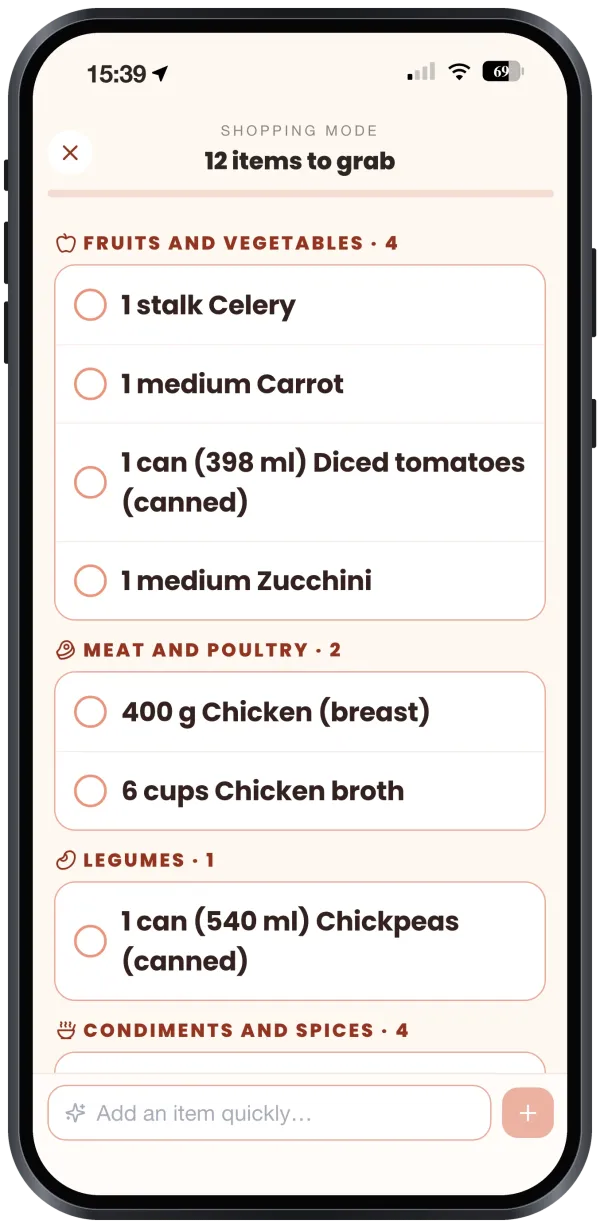
Running low on milk with your hands full? “Hey Siri, add an item to my list in Olivi”: Siri asks which one, and the item lands on your grocery list, filed under the right aisle, as soon as you open the app again.
Continue with Apple, one account everywhere
On first launch, the Continue with Apple button creates your account or signs you back in within seconds, with no password to make up. Google and email with a password are still there if you prefer.
It is the same account you already use on olivi.ca or on Android: your weekly plan, recipes and grocery list follow you from one device to the next. Build the plan on the computer on Sunday, follow the recipe on the iPad in the kitchen, and tick off the list on the iPhone at the store.
And on Android?
The Android app has been on Google Play since October 5, 2026. Its launch post, Olivi for Android, covers what it brings on that side; the Download page gathers both stores and the web version.
Install Olivi on iPhone or iPad
Open Olivi on the App Store on your iPhone or iPad, start the download, then sign in. If you already cook with Olivi on another device, everything is there on first launch; if not, ask Olive to put together your first week.
Frequently asked questions
Which iPhones and iPads can run Olivi?
Any running iOS or iPadOS 16.2 or later. On iPhone, the cooking timer shows on the lock screen; the Dynamic Island only exists on iPhone 14 Pro and later models. On iPad, the timer stays on the recipe screen and the app switches to its big-screen layout on its own.
Does Olivi work on iPhone Duo?
Yes, and it has been optimized for it since version 1.0.3. Folded, the app fits around the column for the time and the camera without cropping anything; unfolded, it switches to two columns: ingredients next to the steps, your recipe library in a three-column grid, the grocery list and the weekly meal plan side by side. It is the same app as on iPhone and iPad, on the same App Store page.
The timer does not show on my lock screen. What should I check?
Open Settings, then Olivi, and make sure Live Activities are turned on. The timer then appears as soon as you start it in cooking mode, and it goes away when you stop it or leave the recipe.
Olivi is missing when I tap Share. Why?
iOS does not always put a new app in the first row. Scroll the row of apps to More, switch Olivi on and move it to the front. If you have just installed the app, open it once and sign in before sharing.
Is there a separate app for iPad?
No. It is the same app on the same App Store page: on an iPad it uses the sidebar and two-column screens; on iPhone it keeps the tab bar at the bottom.
Does the account I created on the web or on Android work on iPhone?
Yes. Sign in with the same method as usual (email, Google or Apple) and your plan, recipes, list and preferences are there. Changes made on one device show up on the others within seconds.
Related articles
Where to next
Let Olive plan your week
Olivi builds your menu and generates your grocery list automatically, sorted by aisle. Free forever plan, no credit card.
Try Olivi for freeAlso worth reading: Hanukkah food for all eight nights: latkes made ahead, a brisket that waits, and one big family dinner · Christmas brunch ideas, planned: two casseroles assembled on the 24th, rolls that rise overnight, and a morning timed around the presents