
By Benoit Descary · June 18, 2026 · Guide
Import a recipe from a URL or a PDF: keep all your finds
To import a recipe into Olivi, you have two complementary ways: paste the address (URL) of a recipe online, or drop in a PDF file. Either way, the app reads the content and automatically extracts the title, ingredients and steps, then saves the recipe to your collection: with no manual copy-paste. URL import works with most cooking websites and blogs; PDF import brings in your digital books and cards. In seconds, a recipe found online or received as a file becomes usable in your planner.
Key takeaways
- Two ways to import a recipe: paste a link (URL) or drop in a PDF.
- Olive automatically extracts the title, ingredients and steps: no copy-paste.
- The imported recipe is added to your collection, ready to plan and turn into a grocery list.
By URL: one link, and it is in your collection
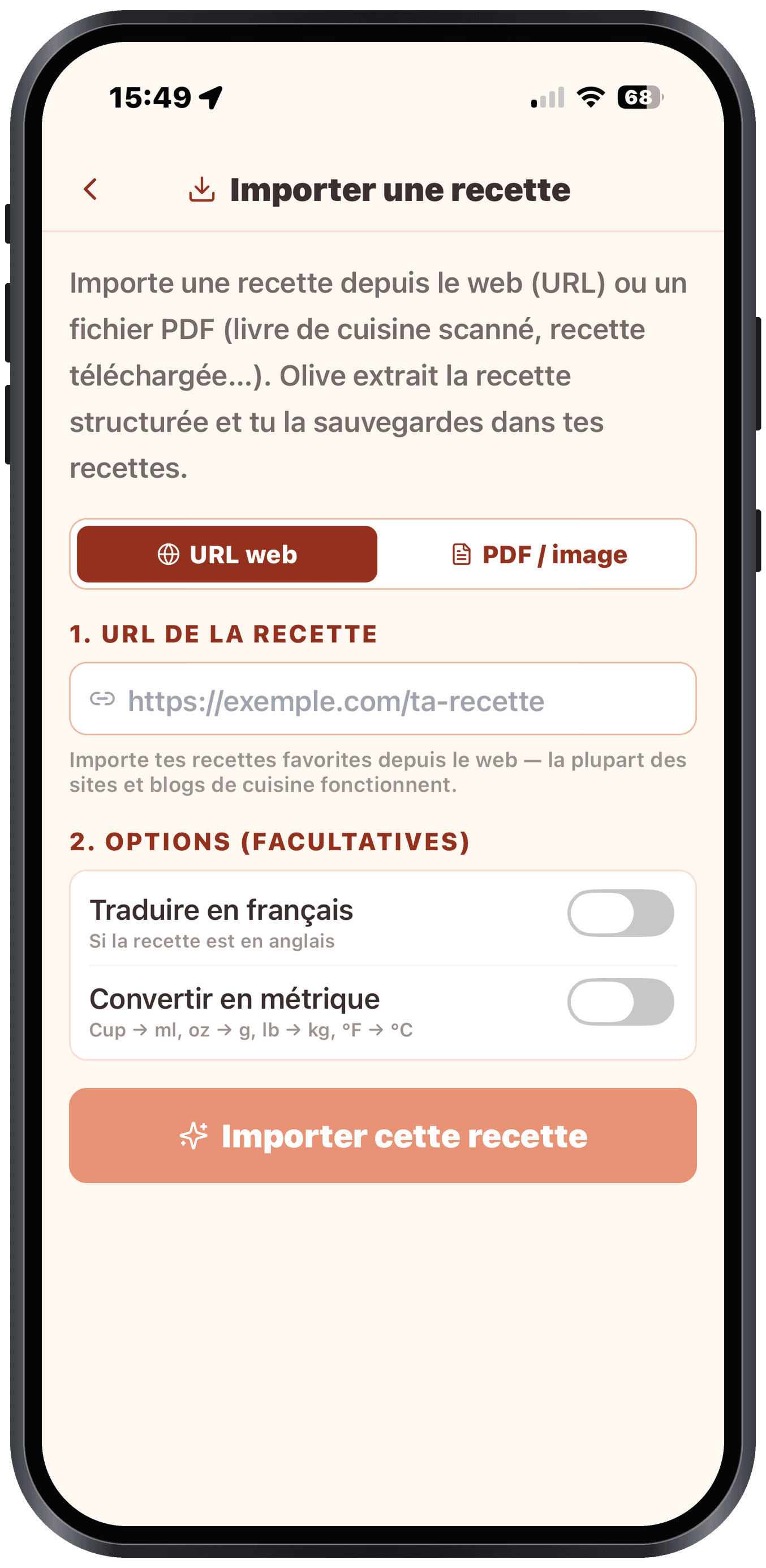
Come across a recipe online that you like? Instead of copying it piece by piece, you copy the page address, tap "Import URL or PDF" in Olivi and paste the link. Olive reads the page and rebuilds a clean, structured recipe.
URL import works with the vast majority of recipe websites and food blogs. You are not limited to a single service: your favourite internet recipe, wherever it comes from, can join your Olivi collection.
By PDF: your books and cards too
Not every recipe is on the web. A digital book, a card received by email, a document shared by someone close: you drop the PDF into Olivi and the app extracts the recipe the same way.
It is the natural companion to URL import: between the two, you can recover just about any recipe you already have in digital form.
What about TikTok or YouTube recipes?
Recipes found in cooking videos follow the same idea, with one extra step: when the recipe is only spoken or shown on screen, Olive watches the video to write it down. Share the video to Olivi or paste its link, and the card arrives in your language with the creator’s credit. The full comparison of methods is in how to save recipes from TikTok.
A clean recipe, without the noise around it
Recipe pages are often buried under ads, long introductions and comments; PDFs, meanwhile, are sometimes a jumble. When you import a recipe, Olive keeps only the essentials: the title, the ingredient list and the steps. You get a clear card, pleasant to follow in the kitchen.
You can then edit it like any recipe: adjust the quantities, fix a step, add a note.
An imported recipe becomes truly useful
Saving a recipe is good; being able to use it is better. Once imported (by URL or by PDF), the recipe is added to your collection just like the hundreds of recipes in the catalogue. You can add it to your weekly plan, and it automatically feeds your grocery list, sorted by aisle and shareable.
That is the whole point of a recipe app connected to a meal planner: your finds, wherever they come from, join your menu and your shopping in the same place.
Frequently asked questions
What is the difference between URL and PDF import?
URL is for recipes online: you paste the page link. PDF is for files you already have (digital book, card received by email). In both cases, Olive extracts the title, ingredients and steps.
Which sites does URL import work with?
Most cooking sites and food blogs. If a particular page is not recognized, you can import the recipe as a PDF or add it by hand.
Do I have to copy-paste the ingredients one by one?
No. That is the whole point: you just paste the link or drop in the PDF, and Olive automatically structures the title, ingredients and steps. No manual copy-paste.
What can I do with a recipe once it is imported?
It is added to your collection, ready to be added to your weekly plan. It then feeds your grocery list, sorted by aisle and shareable with a link with someone close.
Related articles
Where to next
Let Olive plan your week
Olivi builds your menu and generates your grocery list automatically, sorted by aisle. Free trial, no credit card.
Try Olivi for freeAlso worth reading: Copy Me That Alternative: What It Does Well, and What Olivi Adds · High-Protein Meal Plan: a Week Built From Real Numbers