
Olivi offers 5 ways to import recipes:
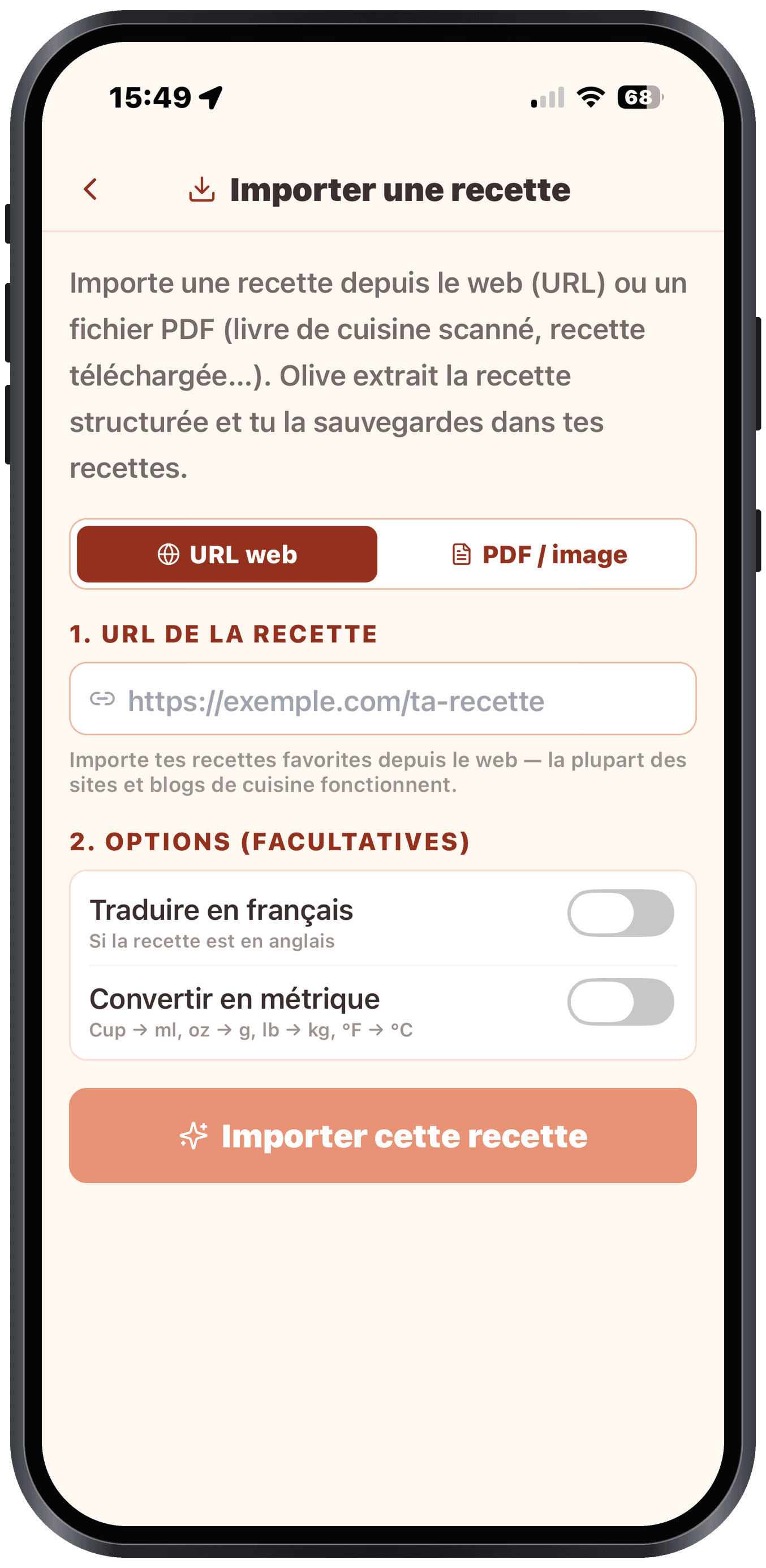
1. From a web URL
Paste the link to a recipe you found on the web (recipe site, cooking blog, online magazine…). Olive reads the page and structures the recipe automatically.
Where: Recipes > + Add > Import URL or PDF > URL tab
2. From a PDF
Downloaded a recipe PDF? Import it. Olive reads the content and structures it.
Where: Recipes > + Add > Import URL or PDF > PDF tab
3. From a photo of a dish
Spotted an appetizing dish at a restaurant or on social media? Snap a photo and Olive identifies the dish and generates a matching recipe.
Where: Recipes > + Add > Photo of a dish
4. From a paper card (Scan)
Your grandmother's recipe book, a magazine, a cookbook? Take a photo of the recipe. Olive reads the handwriting (yes, even cursive) and structures everything automatically.
Where: Recipes > + Add > Scan (paper photo)
Before you start, you can translate the recipe into your language and adapt units to your region: see "Translate and convert on import" below.
5. Several recipes at once (notes, another app)
Migrating from another app, or keeping recipes in notes (Apple Notes, etc.)? Paste everything at once: text holding several recipes AND/OR a list of web links:
- Go to Recipes > + Add > Several at once
- Paste your text (up to 12 recipes per batch: repeat with the rest if you have more)
- Olive splits and structures each recipe (and reads every detected link)
- You get a checklist: uncheck what you don't want, then Import
Each recipe joins your collection one by one with visible progress; if one fails, the others carry on.
Translate and convert on import
Whatever the source (URL, PDF, Scan, or several recipes at once), you can transform the recipe as it imports, thanks to two options:
- Translate into my language: pick the target language from Olivi's six languages (French, English, Spanish, German, Italian, Dutch). Olive translates the title, description, ingredients, and steps, without touching the quantities.
- Adapt units to my region: Olivi automatically converts between metric and imperial based on your region (cups, oz, lb, °F ↔ ml, g, kg, °C). The conversion is calculated, never guessed: no surprise rounding errors.