
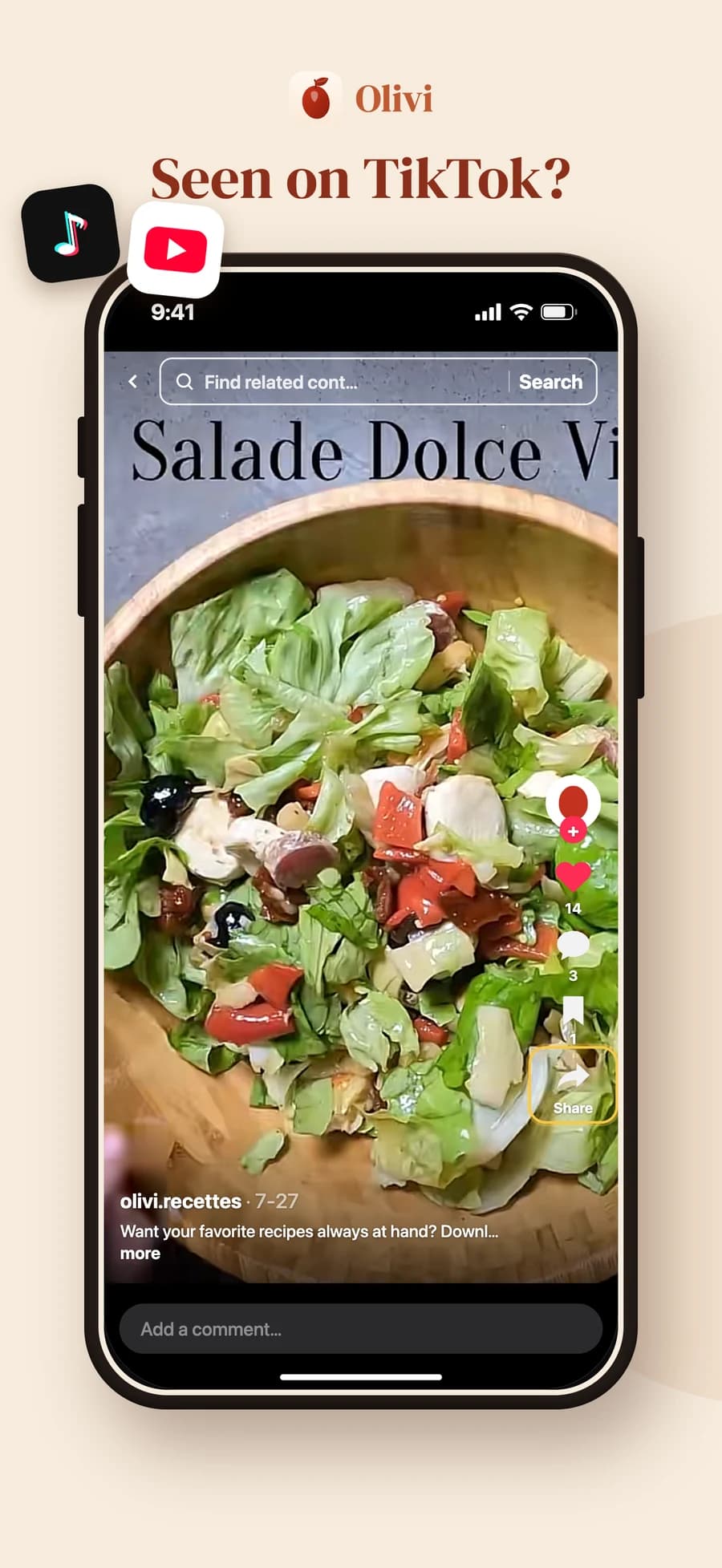
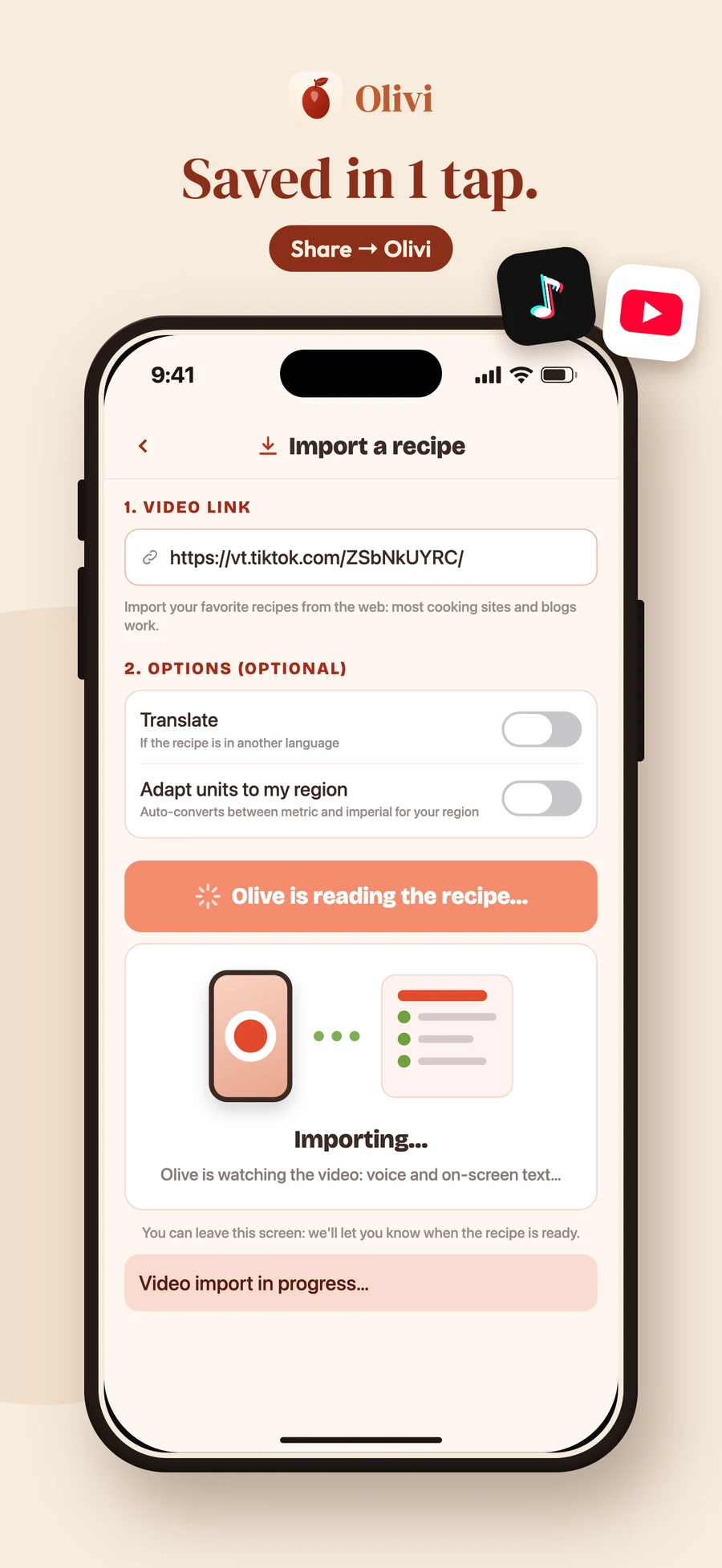
Craving a recipe you saw in a video? In a few seconds it becomes a full recipe card in Olivi.
What Olivi picks up
- The photo of the video, as the recipe picture.
- The creator and the link to the original video: the card shows “Recipe by @creator on TikTok”, with a button to reopen the video.
- The recipe itself, read from the caption. If the caption is not enough, Olive watches the video (what is said and what is written on screen) to find the ingredients and steps.
- The card arrives in your language, even if the creator speaks another one.
Warning
When Olive had to watch the video, check the quantities before saving: creators do not always say all of them.
On the web: copy and paste
- In TikTok or YouTube, open the video and tap Share, then Copy link.
- On olivi.ca, go to Recipes > Import, Video tab (or Recipes menu > Video to recipe).
- Paste the link and click Import the recipe.
- Check the card, adjust if needed, then Save.
On mobile, method 1: Share to Olivi
The fastest way, nothing to copy.
- In TikTok or YouTube, tap Share on the video.
- In the row of apps, choose Olivi.
- Olivi opens on the import screen with the link in place, and the import starts on its own.
Where: the Olivi icon appears in the iOS share sheet and in “Share with” on Android.
Warning
On iPhone, the first time, Olivi may be hidden at the right end of the row, under More. Tap Edit and add Olivi to your favourites to see it first.
On mobile, method 2: copy and paste
- In TikTok or YouTube, Share > Copy link.
- In Olivi: Recipes > + > Import from social media (or menu > Video to recipe).
- Paste the link in the Video tab and tap Import this recipe.
If the caption does not contain the recipe
Olive watches the video. If she still cannot find the recipe (no speech, no on-screen text), two buttons are waiting:
- Paste the recipe text: copy the recipe from the comments or description, paste it, Olive structures it.
- Keep the link and photo: the card is created to be completed later, with the video attached.
Instagram and Facebook
Coming soon. Olivi is waiting for Meta’s approval. Meanwhile, an Instagram or Facebook link keeps the video link and you paste the caption yourself.
Good to know
- Only public videos work.
- Olive only watches the first 8 minutes of a video.
- An import where Olive watched the video counts as 2 AI actions of your daily quota, and Olive watches at most 30 videos a day per account.
- Pick the photo from several frames of the video (TikTok) or from the 4 official thumbnails (YouTube): Olive preselects the one showing the finished dish when she has spotted it. You can always replace it with your own photo on the card.
Go further: how to save recipes from TikTok, compared.